Laptop is the big gun for most bloggers. It offers mobility and a relaxing way to write especially the long-form posts. On one hand it seems like there isn’t much of a difference what laptop you’ll choose. Blogging isn’t a performance-hungry task; it doesn’t rely on a specific platform. You can get a a PC, a Macbook™ or even a Chromebook™. But the lack of a clear guideline makes it that much harder separating the wheat from the chaff. There is no one best laptop for blogging, but I have selected 5 great picks for a blogging laptop according to your budget, your lifestyle and the type of blog you are running.
The best laptops for basic use
If you are looking for the best laptop for basic use, there are 2 Macbooks, 2 Chromebooks and 3 Windows laptops that I would recommend.
Basic Macbook
Macbooks always were a premium class of laptops but their ease of use make them a good choice if you have a larger than a basic budget. Macbooks also play very well with other Apple devices.
The best laptop for AutoCAD (Updated 2018 April)
So you are searching for the best laptop for the new AutoCAD 2018 (or 2019, as Autodesk apparently lives in the future)? Well, be prepared to spend extra cash on the laptop as AutoCAD demands a lot of performance.
Best laptop for AutoCAD LT
First off, if you want to use AutoCAD LT for 2D drawing and drafting you do not have to buy high-end machines for that. I’ve run AutoCAD LT 2015 and 2018 without a problem on laptops priced just under 500$. It took a while to load AutoCAD, but it still worked. At the same time, if you are like most, you’ll probably need the full AutoCAD package, which works with 3D graphics (architecture, 3D design and etc). In this article, I’ll focus mostly on full AutoCAD version and its requirements.
What is essential for a good laptop for AutoCAD
The Essentials
AutoCAD can be surely demanding and if you can, buy a more high-end machine as AutoCAD will be able to take advantage of your extra spending through more lag-free (and stress-free) workflow with complex structures. But let’s start off with the bare minimum – what do you need to run AutoCAD without ripping your hair off? These requirements are roughly based on official minimum requirements for AutoCAD 2018. These requirements haven’t changed much since last year.
So what you should be looking for is:
Multi-core processor
If you’ll work with 2D drawings – this criterion is hard to mess up. Any non-entry tier processor will suffice. But if you can spend more than let’s say 700$, you should aim for higher-end processors. 3D work (architecture, 3D models and design) can put a lot more stress on this part so you should aim for 4 core processors with clock speeds above 3 GHz.
For raw performance under $2000, i7-6700HQ, i7-7700HQ and i5-7300HQ are the best options. The good news – these processors can be found in laptops as cheap as $700 (though I would not recommend these models as they sacrifice every other aspect to squeeze in these processors). But in the $1000-$2000, it is the best pick. At the same time, if you are looking for a laptop that offers a balance of battery life and performance – i7 U line of processors would be better. For example, i7-7500U, i7-6500U, i7-6600U, i5-7200U. In short:
- For best performance look for i7-****HQ (or HK) processors (or at least i5-7300HQ)
- For good performance and battery life balance look for i7-****U processors
Simple enough?
8 GB of RAM (16 GB recommended)
I would not recommend buying anything below 8 GB for any type of laptop for a professional. This is especially the case for performance hungry programs such as AutoCAD. So do not skimp over memory and get at least 8 GB and if you can try to get it to 12 – 16 GB range if you are running more apps than just AutoCAD at the same time (like browser, music player, MS Word and etc.). Even if you are a heavy multitasker – that 16 GB should be enough.
Large screen
When it comes to any visual work – the bigger the better. You surely do not want to squint your eyes to select lines, especially if you go for a higher resolution laptop. Unless you’ll use a laptop for only small touch ups you should not go below 15″. I would even recommend going for desktop-replacement class 17″ laptop if you’re going to work on it primarily. This can come at an expense of portability, so use your best judgement for that – 17″ if you’ll work mostly in the same place; 15″ if you’ll need to work in several places. Also, be sure not to buy a lower-end HD screen (with a resolution of 1366×768). Nowadays anything below 1920×1080 for a 15-17″ laptops is sub par.
This recommendation has been reinforced with every AutoCAD release. This is the only major Autodesk recommendation change since the previous AutoCAD release.
Do you need a 4K display? No, but with AutoCAD 2017.1 and 2018 versions – it is a viable option.
These high resolutions are not yet well supported in every professional application and you’re likely to have at least 1 program in your application suite misbehaving under a high 4K/QHD/UHD resolution. But there’s no reason to deliberately avoid these displays. They can be downgraded to the standard FHD (1920×1080) resolution and when applications under your belt start supporting 4K – you’ll be able to upgrade to these ultra-high resolutions without changing your laptop.
Where it would be wise to spend your money but not essential
The Good Investments
Dedicated graphics card
If you’re working with complex 3D models, your processor will surely be thankful for the help it can get from a dedicated graphics card, which is specifically optimised to handle such tasks. Applications like AutoCAD rely on these graphics cards to deliver the smooth workflow we all want. So if you have covered the essentials, grab the best graphics card you can within your budget. Nearly all dedicated video cards are produced by Nvidia and AMD (Radeon line). Meanwhile, majority of integrated graphics chips for laptops are produced by Intel and AMD.
Bad graphics cards for AutoCAD:
- Anything in Intel HD line
- Any graphics chip in AMD APU
- Entry-tier Nvidia chips: 920M, 930M, 940MX, 1040
Good graphics cards for AutoCAD:
- Intel Iris 540 or better
- Intel HD Graphics 610 or better
- Nvidia GeForce GTX 1050 or better
- AMD FirePro W4190M or AMD R9 M370X or better
- Nvidia Quadro M1000M or better
Best graphics cards for AutoCAD:
- Nvidia GeForce 1060 or better (1070, 1080)
- Nvidia Quadro M5000M or even M5500M
Of course, I have not covered all cards here, just the most popular on the market right now (April 2018).
Solid State Drive (SSD)
SSDs have been named by many as the best investment you can make to make your machine faster and a lot more responsive. Whether other bloggers whether my personal friends – everyone says that installing a Solid State Drive as the main system drive made them regret not pulling the trigger on HDD sooner.
SSD will not improve AutoCAD’s performance as much as it will improve the responsiveness of the whole system. So if you do have everything covered to run AutoCAD, make sure you can launch it fast with an SSD. I would discourage going for hybrid solutions where you get a regular hard drive and a small “buffer” of SSD as they do not deliver the full benefits of SSD and make it not worth the extra spending. It’s worth reminding that if you do not have enough money for an SSD, you can buy a laptop with an extra empty slot for it. Then you’ll be able to buy an SSD down the road and retire your older drive as your “archive”. But once again, if you can afford it, buy an SSD from the start as moving between drives can be a painful hassle.
Battery life
This one is more up to your situation than others. If you’ll work at the same place most of the time taking your laptop out only when it is necessary or taking it out to places where there’ll always be a power source, you can treat battery life only as “nice to have”. On the other hand, if you’ll be working on the go or you’ll need to work without a guaranteed power source – spend almost everything else you have left in your budget for a better battery. Nowadays manufacturer estimates of battery lifetime are a bit more accurate than they used to, so even that can be a good way to compare two or more laptops. If you want to be sure of real battery lifetime, check the laptop list or search for reviews of laptops online.
What would be nice addition to fully round out the laptop for AutoCAD-type software?
Nice-to-Have
Extra memory (16GB+)
I have already talked a bit about the importance of RAM and how you should don’t go below 8 GB even on a strict budget. But if you want to be future-proof, having 16 GB (or even 24 – 32 GB in some rare cases) will make your life easier down the road. As time goes on, the software uses more and more memory (which is also true for AutoCAD) and having more of it will ensure you won’t be in trouble when you have to run 2 or 3 memory-hungry applications. It is worth mentioning that there’s a way to reach a compromise without adding more memory and not breaking your budget – buy a laptop with an additional empty slot for extending RAM. That way, when you’ll need to buy more RAM, you’ll be able to just add a new memory module without breaking the bank.
High resolution IPS screen
By high resolution I mean screens beyond Full HD (1920×1080). Just a few years ago these resolutions were hard to come by, but now high resolution is a key part of a high-end laptop. But not only the pixels count – some screens have high resolutions but still look like ****. To be more certain of the quality the screen can deliver, be sure it has an IPS panel.
Compact mouse (and keyboard)
Do not forget to get a mouse, you’ll be using it a lot, even if you buy the best laptop for AutoCAD and you remember every single keyword in AutoCAD command line. Do not skimp on investing in comfort! It is often underrated as it can be hard to measure, but if you’ll be working with a laptop for most of your day, you sure want something that makes it feel as effortless as possible.
Suggestions
I updated my recommended laptops 2016: January 26th, July 12th; 2017: January 5th, August 2nd; 2018: April 14th!
[laptopdata title=”MSI GL62M 7RD-1407″ link=”http://amzn.to/2ywI31S” price=”$730″] [laptopdata title=”ASUS VivoBook M580VD” link=”http://amzn.to/2uDKph1″ price=”$1,000″] [laptopdata title=”Eluktronics P650HP6″ link=”http://amzn.to/2k5N5je” price=”$1,300″] [laptopdata title=”HP ZBOOK 15U G3″ link=”http://amzn.to/1R97ttZ” price=”$1,400″] [laptopdata title=”Lenovo ThinkPad P51 (i7 & Quadro M1200)” link=”https://amzn.to/2LytZfD” price=”$1,600″] [laptopdata title=”Lenovo ThinkPad P51 (Xeon & Quadro M2200)” link=”https://amzn.to/2IPMJcK” price=”$2,500″] [laptopdata title=”MSI WS63VR 7RL-024US” link=”https://amzn.to/2JLBfUr” price=”$3,000″]Quick table of Best Laptops for AutoCAD 2018
| Laptop | Price (approx) |
Now let’s break each suggestion one-by-one.
Suggestions under $1000
MSI GL62M 7RD-1407
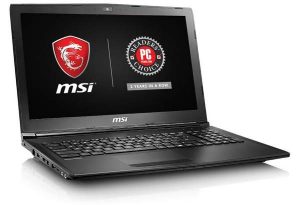
- Good CPU, GPU and SSD combination
- 94% NTSC coverage, which is satisfactory for a mid-range laptop
- Neutral design
- Steel Series keyboard with a number pad
This is a well-rounded mid-range laptop that has amazing performance looking at its price. It has a solid Intel i5-7300HQ CPU, an entry/mid-range dedicated Nvidia GeForce GTX 1050 graphics card and a M.2 (though, not PCIe) SSD.
It has a classic build and in most senses it looks very unassuming. I’m glad that it has a very neutral design. Only the logo on the back hints at the fact that this is a gaming-oriented laptop.
Overall, if you have a tight budget – it’s a great pick. But be aware of its weak battery life which might limit your portability.
Worthwhile (similar) mentions – last year’s pick – MSI GL72 7QF-1057 (17.3″ and i7-7700HQ) and MSI GL62M 7REX-1896US (with 1050 Ti).
ASUS VivoBook M580VD
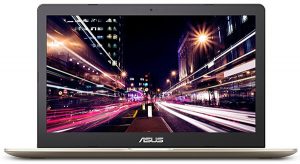
- Plenty of RAM for nearly all AutoCAD projects
- Large storage (SSD & HDD)
- One of the lightest and slimest laptops for AutoCAD
If you can spend a bit more and you’d prefer to have a portable laptop with sufficient juice to run CAD applications, you don’t want to miss Asus Vivobook. It is surprisingly fast considering its size. It is even more surprising how it managed to squeeze in 2 cooling fans which might prevent performance throttling – the Achilles heel of portable workstations.
It doesn’t have an IPS display or a very bright display which might be an issue if you want to use it outside. But apart from that, it’s a offers a very good balance of performance and mobility.
Suggestions under $2000
HP ZBook 15U G3
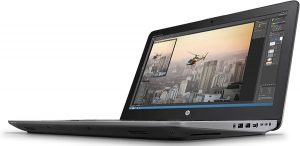
- One of the cheapest laptops with CAD-certified graphics card
- 4K Resolution with IPS Technology
- 128 GB SSD for OS and 2 TB storage for everything else
- OK-ish battery life of ~5h
- No HDMI port (but it has DisplayPort and even VGA)
I would consider this a great option if you absolutely need a CAD-certified card but you don’t need an expensive higher-range model.
This HP ZBook 15U G3 Workstation laptop comes with many other useful features such as a full spill-resistant keyboard, low noise and temperature levels, NVMe SSD and it is considered to be one of the best lightweight laptops for AutoCAD. However, less weight comes with a cost. Though this laptop lacks a spacious SSD.
Eluktronics P650HP6
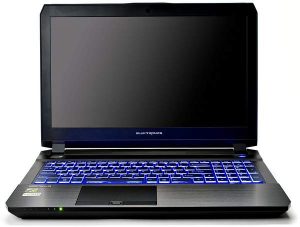
- Bulky, but offers great performance per dollar
- Full IPS display
- Abundance of ports (5 USB, HDMI, 2x Display Port, Ethernet)
Performance wise, this laptop is a beast. If you can sacrifice battery life and you don’t mind carrying a bit of extra weight – it’s a great machine for its price. It has Intel Core i7-7700HQ, Nvidia GTX 1060, 16 GB DDR4 RAM and a 512 GB SSD storage. These are top-notch specs for a fraction of a price.
But it has a below average battery life and it is bulky – it’s more of a desktop-replacement than anything else.
MSI VR Ready GS73VR Stealth Pro-025
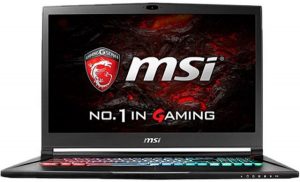
- Large, very responsive display
- Abundance of ports (5 USB, HDMI, 2x Display Port, Ethernet)
- Gaming-oriented VR-ready laptop
Lenovo ThinkPad P51 (i7 & Quadro M1200)
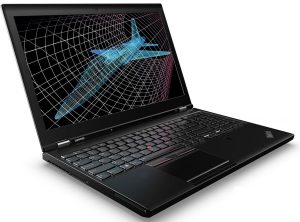
- Finger-print reader
- Long battery life
- Has a color calibrator
- Dedicated Quadro card and a lot of RAM – 32 GB
Suggestions over $2000
Lenovo Thinkpad P51 (Xeon & Quadro M2200)
- Great performance (Intel Xeon processor, Nvidia Quadro card & SSD)
- Plenty of ports: HDMI, DisplayPort, USB 3.1C, 4x USB 3.0
- Long-lasting 6-cell battery (~7 hours) and a fingerprint scanner
Just under $2000, we can find this Lenovo workstation. Thinkpad P50 comes with a high-end Intel Xeon E3-1505M processor and Nvidia Quadro M2000M card which is ~1.5 times faster than M1000M. Also, this is one of the best-reviewed workstations with a great keyboard for long work sessions.
Finally, to make it perfect, I would add 500 GB SSD and/or additional 2 TB HDD.
MSI WS63VR 7RL-024US
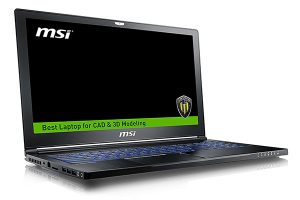
- eDP IPS-like panel
- One of the very best GPUs for AutoCAD: NVIDIA Quadro P4000
- One of the slimmest laptops with CAD-certified graphics card
How to actually choose the right laptop: College
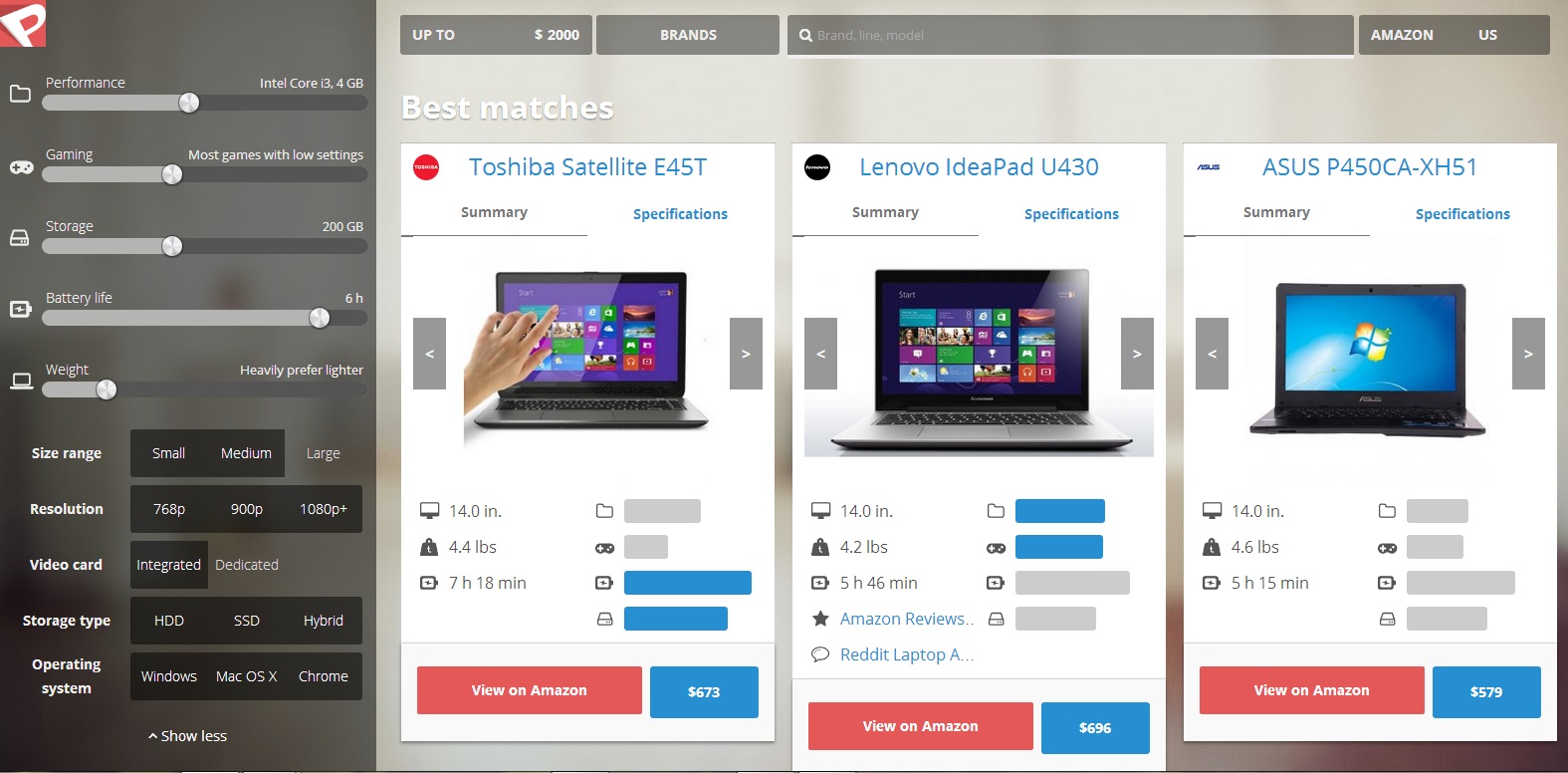
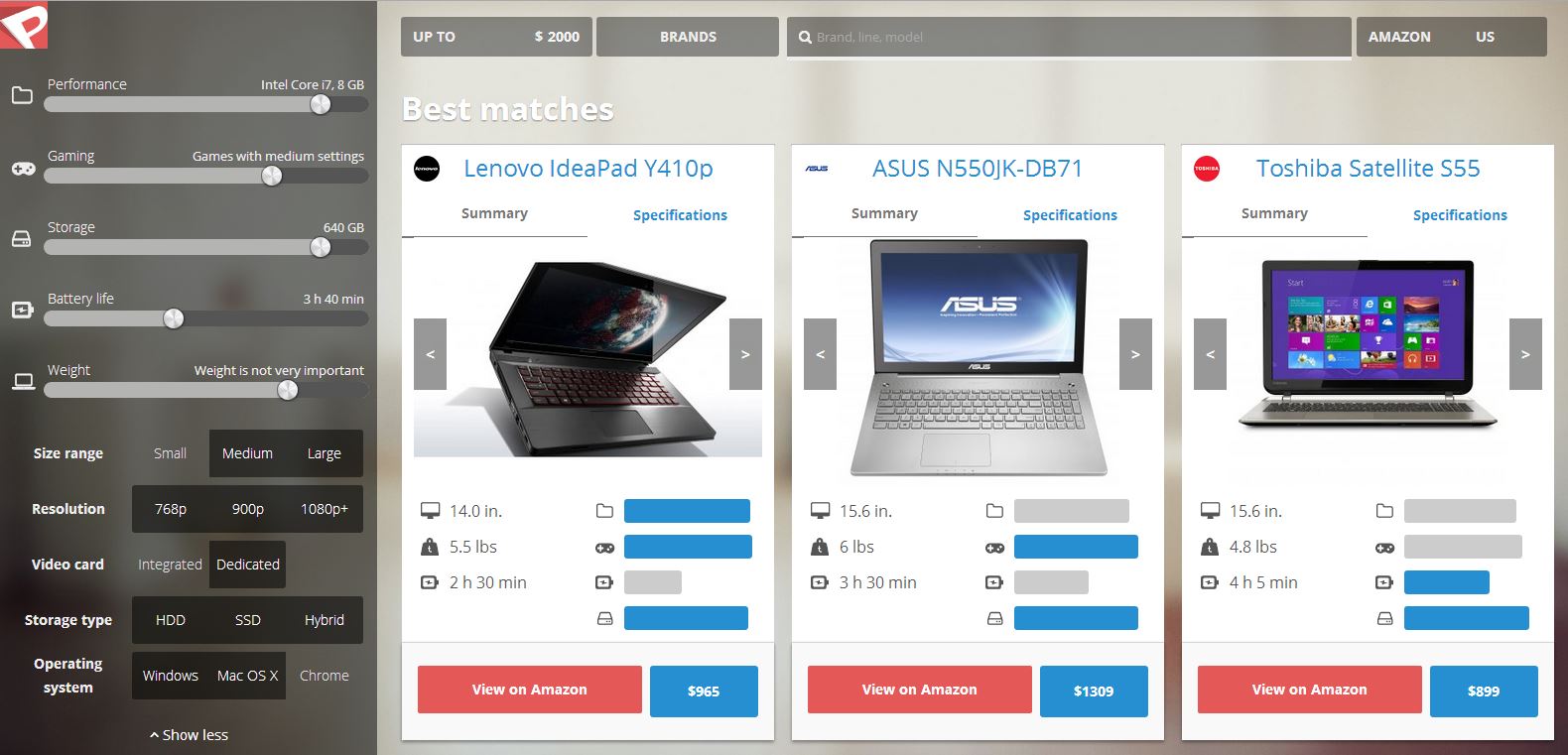
2 years ago I bought myself a laptop for my Computer Science college degree and I am still amazed by how useful I find it today. I won’t even tell you the model. That’s because I believe there is something more important than just looking at the most popular “best 5 laptops for college students” article. In my humble opinion, getting the best device is almost all about figuring how –you- are going to use it and what –you- prefer the most. Unfortunately, a surprising amount of people seem to forget this and hope that if a laptop is good for someone else it will suit them just as well. I thus decided to write a series of posts that would focus on helping people figure out the different laptop characteristics that will matter the most to them. Read this and using PickNotebook will be even more useful.
Performance (processor, RAM)
- Degrees only requiring basic work with computer – low/medium (Intel i3 processor, 4GB RAM)
- Degrees requiring complicated work with computer – medium (Intel i5 processor, 8GB RAM)
- Exceptions: playing video games on high settings – medium/high (Intel i7 processor, 16GB RAM)
You need to consider whether your degree will require complicated work with your laptop. Video or music editing are good examples of such tasks. Media studies, architecture and similar degrees would thus require no less than a medium performance machine. On the other hand, writing essays, making presentations and even programming won’t need any more than laptops balancing on low and medium performance. These days, getting a computer with any kind of Intel i3 processor will almost always result in smooth performance when no large programs are running. i5 and i7 should be bought only if you have an idea how you’ll use it. 4GB RAM will be enough, although 8GB will usually result in faster overall performance without a significant price increase.
If you’re not sure what your specific subject will require you to do with your laptop, I would highly recommend trying to find it out before buying a laptop. Ask people already studying the subject in your university, send a quick email to one of the lecturers – people will be glad to help you. This is definitely worth the time – having to deal with a half-responding laptop when you’re trying to be efficient during that last night before the deadline is something no one should experience.
Gaming and visual work (graphics card)
- Not interested in gaming, no video editing and modelling – low/medium (integrated video card)
- Video editing or gaming – high (dedicated video card)
Some people will find this fun, some will find this annoying, but if you go to college you will probably get invited to play video games with friends quite a few times. They are very popular these days and it can be just another way to spend time with people you enjoy being with. My suggestion would therefore be to consider a medium video performance laptop even if you don’t really play games yourself. You never know – with the diverse range of games produced each day, you might as well find something you like during the time you have your next laptop.
If you go high graphics performance, you will want to try to get a laptop with a dedicated instead of an integrated graphics card. I won’t go into detail about the difference between the two in this post but will simply say that in 95% of cases, the second one is considerably better. It will result in a higher price though.
Storage
- Most cases –shouldn’t matter much as external hard drives are possible
- Expect to do a lot of work with a computer – consider SSD storage (smaller but faster)
I would suggest choosing a laptop based on other parameters than storage size. If you go for a more expensive machine due to better performance, the laptop will usually have more storage. There is one exception, however – you will notice some laptops have much lower storage for the price of other laptops. A MacBook Pro for 1500$ only has 256GB of storage. Laptops in this price range of other manufacturers will usually have around 1000GB. This difference is because of a different, faster kind of storage – SSD drives. With these laptops, you will almost definitely want to buy an external hard drive to store photos, music and other large files. However, opening files, searching them will be much faster. Aim for this if you have extra budget remaining and if you expect to do a lot of working with the computer where many files are involved. Also it’s worth noting that these days a 1000GB external hard drive would cost you about 100$ extra.
Battery life
- Don’t like taking laptop to lectures – low (~3 hours)
- Like taking laptop to lectures – high (6+ hours)
Since most students want to take their laptops to classes, you’ll probably want a high battery life. Power outlets will not be available everywhere and you will encounter situations where your laptop will run out of power. You do want to make sure you can use it for as long as you can before that happens though.
Size and weight
- Don’t like taking laptop to lectures – consider larger (15.6+ inches, weight shouldn’t matter much)
- Like taking laptop to lectures – light (less than 15.6 inches, 4.6lbs and less)
At first, taking you laptop to lectures seems like an amazing idea. However, only about a quarter of people in our course still do that. Typing during a lecture can be annoying to others if it’s loud and useless if you don’t type fast. Furthermore, many people end up browsing cat pictures and Facebook when they should be listening to the lecturer. Keep in mind that for easy access to the internet, IM programs and such, you can use your smartphone.
Now if your laptop is going to stay in your dorm most of the time, there’s no reason not to get a bigger laptop with a wider screen which will be nicer to look at, faster and cheaper.
Operating system:
- Check if college has a preference.
- No college preference – personal preference
- No college or personal preference – what most friends have
First of all, be sure to check your college website to make sure that there’s no officially preferred operating system. For example, if your course will require you to use some course specific applications (AutoCAD for example) it will be unbelievably easier if you get instructions from people working on the same operating system. If you have no preference yourself, you might even ask what your friends are using – this way you will be able to get help from them in case you need it. And then, of course, there’s also this easy way to instantly feel a deep spiritual connection with someone with the same OS on their computer. Or maybe that’s just computer science students…
Price range
- Budget laptop – 300$-500$
- Reliable mid-range laptop 500$-800$
- Laptop for advanced work or gaming 800$+
These are the prices to help you imagine what your budget should be able to buy. If you find a laptop that is cheap and yet has high performance statistics, look at all the details closely – it is very likely that some other part will be poor quality. Amazon also has reviews for most laptops – read those before making a final decision.
If you are looking for a very basic and cheap laptop, consider a chromebook. These are good if you only want to browse the internet, work with simple documents. The Chrome OS is best for easy use of internet applications but will be limited when it comes to more specialised programs. Make sure that access to the internet will be available most of the time if you wish to buy a chromebook though, as most of its functionality depends on online services.
Reliability
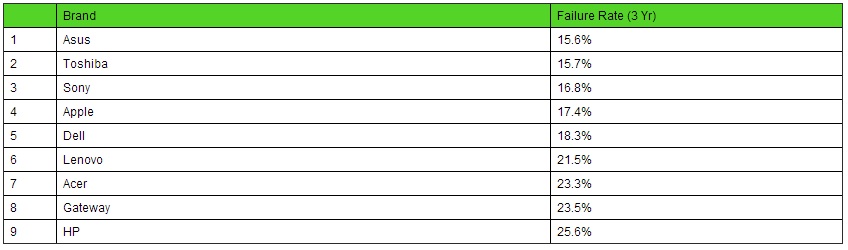
- Might want to avoid HP laptops
Most students will hope that they won’t have to worry about replacing a laptop for around 3 years. The statistics collected by Square Trade (http://www.statisticbrain.com/laptop-malfunction-rates/) are similar to both other researches and just stories told by other people – HP laptops tend to break quite often.
If you have budget remaining:
-SSD storage for simple but frequent work
-Better processor and RAM for general speed, especially with large and multiple programs
-Better graphics card if you enjoy gaming and expect to work with video programs
If you have extra budget remaining after choosing the options that you need, consider increasing storage space first while the price increase is low. After that, extra money may be spent to make the programs you will use run faster. For games and video media creation, better graphics card will mean higher video settings in games. Better processor and RAM will mean a better overall speed. Yet this will only be noticed if you either run many programs at once or some very large programs.
Feel free to ask for more specific advice if you have more questions, I will be happy to answer them!