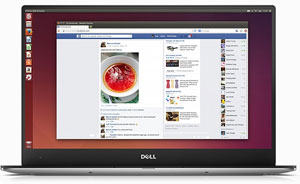
I will go straight to the point with this one. Find the best Ubuntu laptop is not easy – even finding a good laptop for Windows can take some time. And when we add compatibility issues and varying degrees of Ubuntu support for 15.xx and 16.xx releases, we can find ourselves crossing fingers hoping that the trackpad and WiFi work out-of-the-box.
On the other hand, Ubuntu is the best Linux distro when it comes to finding a compatible laptop. There are plenty of reviews and guides for the most popular guides. Ubuntu community might not have a well-maintained wiki with recent laptops (as ArchLinux does), but there are a lot more easy step-by-step guides for Ubuntu users.
In this lengthy post, I’ll cover what is important when searching for the best laptop for Ubuntu and what are the common problematic areas. Then, I’ll list out the best Ubuntu laptops with guides: best laptops with Ubuntu pre-installed, best Chromebooks for Ubuntu and the best Windows laptops and MacBooks with good Ubuntu support.
What we should look for in an Ubuntu laptop?
First things first. To find the best Ubuntu laptop, we’ll need to know what we’re looking for and what we should avoid. I’ll break down specs one by one and outline what are our options.
Performance
Major Processor
Starting with Kernel 4.3 – found in Ubuntu 16.04 LTS, Linux supports Skylake graphics which are generally superior to their Broadwell and Haswell counterparts. Therefore, unless you have limitations of a particular Ubuntu version, go for the latest Ubuntu release with newest Kernel and a 6th generation Intel CPU.
Apart from that, judging a mobile processor for Linux is quite straightforward.
I think you understand that finding the best Linux laptop is not as easy as finding a laptop for a particular piece of software or a profession.
A mechanical engineer buying a laptop will at least know that the touchpad, audio, and graphics cards will be working. Anything else wouldn’t be acceptable. But this is not the case for Linux laptops. Even in 2017, there are a lot of issues when trying to stuff most Linux distros into a non-certified laptop. And if you’ve got a Windows laptop or a Chromebook – a problem with Linux is a problem you’ll need to solve.
But searching for the perfect out-of-the-box compatibility is an easy way to leave yourself with just a few options on the table. That’s why, I’m going to look for the laptops that are great overall while maintaining sufficient compatibility with Linux (as in, they have guides showing how to fix any or most of the issues that can occur).
In this post, I’ll start off with the basic prep-work: choosing a distro, what hardware we should avoid and what metrics are most important when in search for the best Linux laptop. Finally, I’ll list out some great options: Chromebooks, Windows laptops and workstations
It’s worth to note, as a programmer, I have a bias for a fast processor, a lot of RAM and SSD. That’s why some of the best Linux laptops for me might not match your needs if you will not be using your laptop for work.
Also, even though I have updated this guide in 2017, I haven’t found any guides on Ubuntu 17.04 so, but there’re a few on 16.04 LTS and 16.10.
Pick a distro upfront
First of all, if you already have made you mind on Linux distro – it will be easier to find a compatible laptop suiting your needs.
And if you haven’t – there are a lot of good Linux distros to choose from. Also, if you’re a user of some classic distro, remember that getting a new laptop can be one of the best times to try out a new flavor of Linux. For example, if you’d like to get a Chromebook for Linux, then GalliumOS (subreddit) could be a nice choice. Or maybe this is the time you’ll finally try out Elementary?
Finding the best World of Warcraft laptop depends on your budget and on the visual settings you’re willing to tolerate. Luckily, the core game engine is so old that there’s no need to get top-of-the-line hardware. That should be great news if you’re searching for a WoW laptop under $500.
World of Warcraft: Legion logo is a trademark of Blizzard Entertainment. Use of it does not imply any affiliation with them.How am I going to find the best laptops for WoW?
Updated on June 5th, 2018. This time, I’m replacing all laptops with mostly 8th gen Intel processors and Nvidia Pascal graphics. Updated on March 3rd, 2021. I’ve added an updated guide with laptops for WoW: Shadowlands.
First, I’ll show you what are the exact requirements for a laptop instead of the generic stationary PC-oriented requirements. Then I’ll guide through each of them so you’ll know where you can cut corners and what is an absolute must. Finally, I’ll list out 8 best World of Warcraft laptops in their price ranges starting from $350 and ending with ~$3000.
Any 4th-7th gen i3, i5 or i7 processor;
AMD A6-5200 or up;
Intel M3-6Y30
i5-6300HQ;
i5-8300H;
i5-8250U;
any 4th-7th gen i7 Q-series processor (i7-4720HQ, i7-5700HQ, i7-6700HQ…);
(this does NOT include i7-*500U CPUs)
Video
Any integrated graphics in 5th-7th processor (except generic HD Graphics and HD Graphics 510);
Any dedicated Nvidia graphics card; AMD Radeon R7/R9 M300 series
Nvidia GTX 960M;
Nvidia GTX 1050;
Nvidia GTX 970M/1060 for high frames above Full HD resolution
Memory
4 GB
8 GB and more
These requirements are NOT official – I used the official requirements to match their recommended components to equivalent laptop parts. I used 3rd party benchmarks including 3DMark and PassMark tests.
Sims 4 logo is EA trademark. Use of it does not imply any affiliation with them.
Sims 4 does not necessarily need a very fast laptop. In fact, it is one of the easiest games to pick a laptop for. Of course, if you want to get the best deal, which is exactly tailored to what you’ll need to run Sims 4 – it helps to know what exactly you should be looking for.
To find the best Sims 4 laptop, I went through PC requirements, converted them to equivalent laptop components and what are the precise processors and video cards you should look for. Finally, I’ve picked out 5 best laptops for Sims 4 depending on your budget and the graphics settings you want to play the game on.
To begin with, let’s examine what is important for a Sims 4 laptop.
OS, Sound Card, Hard Drive, DirectX and other requirements are easily met by any modern laptop
There are a few more different 3rd party sources for Sims 4 requirements which can help us to get a better grasp on what should be our target. These are the recommended specs for Sims 4:
Processor: Intel Core i5-750
Video card: Nvidia GTX 650
Memory: At least 4 GB RAM
These system requirements are targeted towards stationary personal computers and not laptops. Now, I’ll adapt these requirements to laptops one-by-one.
Also, we don’t need to worry about Sims 4 expansion packs (Get to Work, Get Together), game packs, stuff packs and other DLC.
The Sims 4 Laptop Mode
Just before we start, I need to address The Sims 4 Laptop Mode. It allows running Sims 4 with very old and weak machines, including some of the cheapest laptops out there. That’s why if you just want to run Sims 4 on the cheap – even the most basic laptop will be enough (more on that in recommendation section).
I used to be one of those people that took A LOT of time to find a good laptop. I researched every option, quantified every aspect I could and compared every option in a spreadsheet. I am making it sound as if I don’t do it anymore – actually, I still follow this process for my major purchases since it is the best way. But now, I know what I need to focus and what is non-essential. The same process can be applied when searching for the best laptop for engineering.
In this post, I’ll outline the key qualities and metrics you need to know to get the best deal possible. At the end, I’ll list out the top 5 options that I’ve found out by comparing every laptop on my extensive list of hottest and best selling models.
What is needed to get the best engineering student laptop?
For the most part, you can’t expect your university to give precise guidelines to an engineering laptop. Even if your college website gives a description of what laptop you need – they make it sound as if any laptop that has a screen and a processor made in the 2000s should be just fine. At the same time, some websites recommend workstation notebooks which are way over most students budget. These machines are needed only if you’re already a professional. But if you get a professional workstation now and you do not intend to fully utilize it right now – it’s a waste of money that could be put better elsewhere.
Performance and speed
Major requirementProcessor
Here are the processors you should expect at every price range:
Remember that the higher you go on the processor ladder, the shorter battery life you’ll get. That’s why you might not want to go up to the most powerful processors in i7 x800 or x900 lines.
2 processors that dominate the laptop market right now are:
i7-6500U – ($700 and up) above average performance and good battery runtime
i7-6700HQ – ($960 and up) very good performance and shorter battery runtime
Any processor in i7 series and some higher-end i5 processors is fast enough for engineering students.
The best laptop for photography should have a good balance of performance (for editing), high-quality screen and portability.
In the next 5 minutes, I will cover all bases that need to be addressed to pick your own best laptop for photography. I will also list out what you should expect at various price ranges.
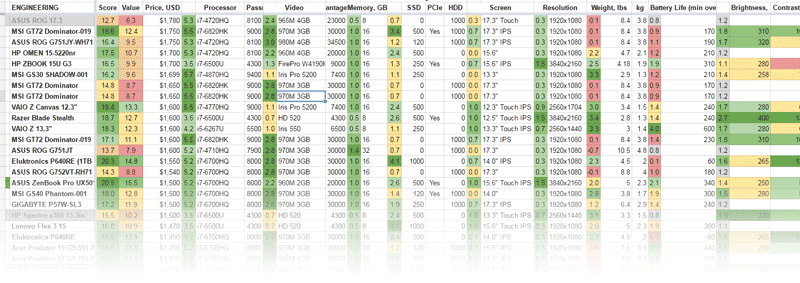
At the end, I’ll list out 5 best picks when it comes to best laptops for photography. To find them, I went over a 120 hottest laptops and evaluated them using an array of metrics and benchmarks starting from the processor and ending with every important display metric: panel, resolution, brightness, contrast, sRGB/RGB coverage.
Requirements for the best laptop for photography
I have conveniently split requirements into 3 groups: 3 Major, 3 Minor, and a single Optional demand. Depending on your personal needs, these can be re-ordered or even thrown out. But most could blindly stick with these exact requirements without risking of making a wrong choice.
What is critical for photography laptop?
Major requirement A lot of storage (fast) space
Types of drives
Whenever you’re checking out a laptop, one of the very first you should look at is its storage type. There are 2 most general types of storage and a few options in-between.
First and foremost, SSD is the king when it comes to storage drives. It is the single most impactful advance when it comes to consumer computer parts in the past 10 years. That’s because they’re head and shoulders above the older HDD drives. Solid State Drives are tremendously faster, they consume less power and they do not degrade in performance as HDDs do. But there is one very relevant caveat when it comes to these drives – their price. SSDs are quite a bit cheaper when looking at their price tags from a few years back but they’re still a lot more expensive than their HDD counterparts.
Storage size
Type
500 GB
1000 GB
2000 GB
HDD
$35
$55
$95
SSD
$200
$400
$850
Not surprisingly, a complete opposite could be said about Hard Drive Disks. They are redundantly cheap and best suited for long-term storage. If you are searching for a stationary computer – this would be the end of the story when it comes to drives. Get 500 GB in SSD for the system, photo editing apps and your recent pictures. Then, add 2 TB in HDD for image archives and forget about all storage limits.
The reason why this won’t (usually) work for laptops stems from their size limits. Only 17.3″ owners could brag about their 3 or 4 installed drives. Now, many 15-inch notebooks have very limited options for additional storage. Most likely, they have 1 drive slot and mSATA or M.2 connection. In some cases, manufacturers, striving for ever slimmer and lighter laptops, completely moved to M.2 drives which are only suitable for SSDs.
At the end of the day, you need to choose:
A lot of cheap and slow storage
A small-ish SSD and a spacious HDD in a 15″-17″ laptop
A large SSD in an expensive laptop
What to expect
13.3″
15.6″
17.3″
Under $1000
250 GB SSD
250 GB SSD + 1 TB HDD
250 GB SSD + 1 TB HDD
Under $1500
500 GB SSD
500 GB SSD + 1 TB HDD
500 GB SSD + 1 TB HDD
Over $1500
500 GB SSD
500 GB SSD + 1 TB HDD
500 TB SSD + 1 TB HDD
One more thing, you could get a small external drive over USB 3.0 later down the road, when you’ll be certain that you need one. UBS 3.0 drives are sufficiently fast to not notice a difference. There’s always a cloud storage option, but I would only use them for back-ups. Even with a 100 Mbps internet, they’re still not convenient at all when working with high-resolution RAW images.
Finding the best laptop for photo and video editing requires balancing a lot of power-hungry components with a top-notch screen while keeping a personal budget in the equation.
And it gets even more complicated.
When you need a lightweight machine that can run for hours on its battery alone while still being able to provide the smoothest workflow.
In this post, I will describe what you need to look for EXACTLY in a notebook for creative work and what you should expect at your price range to the dollar.
Finally, I’ll list out 7 best options when it comes to best laptops for video and photo editing. To pick them out, I went over a 100 hottest laptops and evaluated them using specs and benchmarks that took me days to find and collect.
What are we looking for in a photo and video editing laptop?
What is essential for the best laptop for photo and video editing?
Major requirement SSD
How much storage do I need?
You need to decide on the total amount of storage that you’ll need. A basic starting point should be 500 GB. But if I were you, I would advise going up to 1 TB or more.
Do I need an SSD?
Yes. I recommend getting at least a small 250 GB SSD for OS, Photoshop, Lightroom or your favorite photo editing app and several “hot” photo folders. It will make a world of difference. When I edit photos, I notice a measurable difference between my files on SSD and HDD. And I don’t have to work with super high-resolution uncompressed RAW images that would benefit the most from an SSD.
But the main issue with laptop SSDs is that there aren’t many laptops that come with 1 TB SSD built-in. That’s why sometimes you’ll need to limit yourself to 500 GB + 1 TB setup or you’ll need to spend ~$320 for 1 TB SSD.
What should be my target?
At the end of the day, everything revolves around two variables:
Size of a desired laptop
Your spending budget
That’s what I would recommend and what you should optimistically expect:
13-inch
15-inch
17-inch
Under $1000
250 GB SSD + external storage
250 GB SSD + 1 TB HDD
250 GB SSD + 1 TB HDD
Under $1500
500 GB SSD
500 GB SSD + 1 TB HDD
500 GB SSD + 1 TB HDD
Over $1500
500 GB SSD + external storage
500 GB SSD + 1 TB HDD
1 TB SSD + 1 TB HDD
The good part with 15.6″ and 17.3″ laptops is that they often have 2 or 3 slots for storage. That allows easy upgrades in the future.
So you are searching for the best laptop for law school? The good news is that you do not need to spend a lot for an OK computer. But if you want the best one for your needs and wallet – there is only a handful of options I can recommend.
In this page, I will cover everything you need to know about getting a laptop for law school: essential parts of a laptop you should focus on, what is not so important and what are my top 5 picks ($170 to $2100) for any law school student.
What are the requirements for law school laptop?
I have isolated 3 major requirements that would make any laptop a solid choice. Then I have 5 minor requirements that would make sure the notebook we are getting is well-suited for law school and student life in general.
What is essential for the best laptop for law school?
Major requirement Storage
I think, SSD is my most used abbreviation. And for a good reason. Even now I get a bit excited when seeing how quickly every app starts up and how little time I need to find a missing document. SSD is the cure from my trauma of slow computers and hard drives breaking down since Windows 98 era.
If you have been living under HDD rock and you do not know what an SSD is – I can break it down to a few very basic rules of thumb. SSD is a different type of a storage drive that offers a tremendous improvement in overall speed and general experience when using a computer. In the past ~5 years, these drives have become a lot cheaper and viable option compared to their older HDD counterparts. And now, these SSD drives are becoming the standard. Yet, there still are many notebooks in every price range that do not have an SSD. In short, getting an SSD over HDD is be the investment to a computer’s performance you could make.
To understand what you should expect from a laptop, here’s my guideline after comparing ~130 laptops on the market:
Under $700: regular hard drive
$700 to $1000: small SSD storage (250 GB)
$1000 and up: medium SSD storage (500 GB) with possible additional 1 TB HDD
Depending on a laptop’s size, there are various options to upgrade a laptop in the future, so do not worry too much to get this requirement one a bit wrong. Unlike processors or graphics chips, storage drives are easy to replace or upgrade, especially in large 15-to-17-inch computers. With smaller ones, I would be more cautious and I would try to get my preferred setup already built-in.
The best laptop for word processing and excel doesn’t mean that should be expensive. At the same time, when brands release entry-level laptops, they are forced to make some strong compromises. And I won’t shock you by saying that some laptops have made very bad ones.
That’s why getting a first cheap laptop off the shelve will not work. Or at least, you’ll have a worse laptop than you could have. And I don’t know much about you, but I hate knowing I could have found a better deal and I didn’t due to my own fault.
That’s why I’ll share my knowledge on finding the best cheapest laptops for word processing and best laptops for excel. First, I’ll outline the requirements that will narrow our focus to the essentials and at the end, I’ll reveal the best cheap laptops for every price range.
Let’s dive right in.
What are we searching for in a word processing and excel laptop?
There are not many things you can get wrong with when buying a computer for Word, Excel, and other basic office software. But if you want to get the best cheap laptop for word processing and the internet, you’ll need to spend your money just in the right areas and ignore the rest.
What is essential for the best laptop for word processing?
Major requirement Mid-range processor
There are 2 key parts when considering general laptop experience: a processor and hard drive.
Under $400: basic processor and regular hard drive
$400 to $700: mid-range processor and regular hard drive
$700 to $1000: good processor small SSD storage
$1000 and up: good processor large SSD storage
You probably noticed, that I slightly prioritize a better processor. That’s because a hard drive can be replaced, upgraded or at least defragmented if it is becoming frustratingly slow. Meanwhile, the processor cannot be changed under any circumstances and there aren’t many ways how to speed up laptop processors.
A basic processor is enough for word processing. At the same time, I’d advise getting an Intel Core i5 processor if you’d like to have a good experience using your notebook for years to come.
Also, you don’t need to break a bank to get a laptop with Intel Core i7. Laptops with i7 start from $710. Of course, it’s entirely optional and I would recommend getting a laptop with a performance-oriented CPU only if you’d like to use it for more than just word processing.
I’ve been a full-stack web developer for past 4 years and as a laptop-obsessed person, I’m glad whenever I get asked what is the best laptop for web development and programming. That’s because I can recommend the stuff I’d buy instead of going through the regular train of thought of “this would be great for me, but I guess this person won’t need that much RAM/SSD/GHz/etc”. And in this post, I’ll guide you on how I’d choose a laptop for web development and which laptops are the best options right now.
What are we looking for in a web development laptop?
What is essential for the best laptop for web development?
Major requirement SSD Storage
Solid State Drives took the laptop market by storm. They outmatch their older HDD counterparts in nearly every criteria.
Any web developer can easily appreciate the main advantage of an SSD – ability to handle a lot of small files. This is relevant every day when you need to search for that one function or when you need to refactor your project. These days nobody needs to be sold the idea that the SSD is your only choice if you’re spending over $1000 for a laptop.
The main problem with SSDs – their lack of storage can get out of hand quickly depending on the projects you’re working on. Every git commit and every new set of front-end graphics chips away at the usually very limited storage size until you find yourself cleaning your system for every last byte. For most, this means that you’ll need either to get a laptop with a large enough SSD to begin with or you’ll need to upgrade to a larger internal/external drive.
To understand what are your options, I’ll list out what should you expect within a given price range:
These are mostly lines in the sand to get a sense where the laptop market is right now. For example, there are some custom-upgraded laptops for $800 that come with 1 TB SSD and there are laptops over $2,000 that still don’t have one. But 90% of the laptops, especially the best ones with a balanced set of specs, do conform to these guidelines.
You could get a cheaper non-SSD model and upgrade it later on. Right now, 250 GB cost ~$90, 500 GB cost ~$150 and 1 TB are ~$330. Prices jump a bit when you consider PCIe M.2 drives that are even faster (not to be confused with SATA III over M.2 that offers no speed improvement).
Getting some external storage over USB 3.0 or Thunderbolt III is also a viable option. These days, USB 3.0 and Thunderbolt III (usually implemented with USB 3.1 Type C) offer great read/write speeds. They’re so good that putting all your code on an external drive is a good option. Though, I wouldn’t prefer it as there are some inconveniences when connecting multiple external devices or when switching to a different USB port.
Some 15.6″ and 17.3″ laptops could be upgraded with a very cheap $50-$60 1 TB HDD which could be used to store mostly static resources, personal media, and archives when the OS and all code sits on a smaller SSD.
 I will go straight to the point with this one. Find the best Ubuntu laptop is not easy – even finding a good laptop for Windows can take some time. And when we add compatibility issues and varying degrees of Ubuntu support for 15.xx and 16.xx releases, we can find ourselves crossing fingers hoping that the trackpad and WiFi work out-of-the-box.



 At the end, I’ll list out 5 best picks when it comes to best laptops for photography. To find them, I went over a 120 hottest laptops and evaluated them using an array of metrics and benchmarks starting from the processor and ending with every important display metric: panel, resolution, brightness, contrast, sRGB/RGB coverage.
 And it gets even more complicated.
 So you are searching for the best laptop for law school? The good news is that you do not need to spend a lot for an OK computer. But if you want the best one for your needs and wallet – there is only a handful of options I can recommend.
 The best laptop for word processing and excel doesn’t mean that should be expensive. At the same time, when brands release entry-level laptops, they are forced to make some strong compromises. And I won’t shock you by saying that some laptops have made very bad ones.
 I’ve been a full-stack web developer for past 4 years and as a laptop-obsessed person, I’m glad whenever I get asked what is the best laptop for web development and programming. That’s because I can recommend the stuff I’d buy instead of going through the regular train of thought of “this would be great for me, but I guess this person won’t need that much RAM/SSD/GHz/etc”. And in this post, I’ll guide you on how I’d choose a laptop for web development and which laptops are the best options right now.